
📌 Aujourd’hui, je vais vous montrer comment fabriquer facilement un radar a ultrasons 📡, parfait pour détecter des obstacles et même mesurer une distance.
📌 Pour reproduire le projet, tu as besoin de
- 📟 1 Arduino (https://goo.gl/8NA8bb)
- 🔧 1 module ultrason (https://goo.gl/TVvqQR)
- 🔧 1 servomoteur (https://goo.gl/5uYWhn)
- 🔌 1 câble USB/Arduino
- 🔌 7 fils
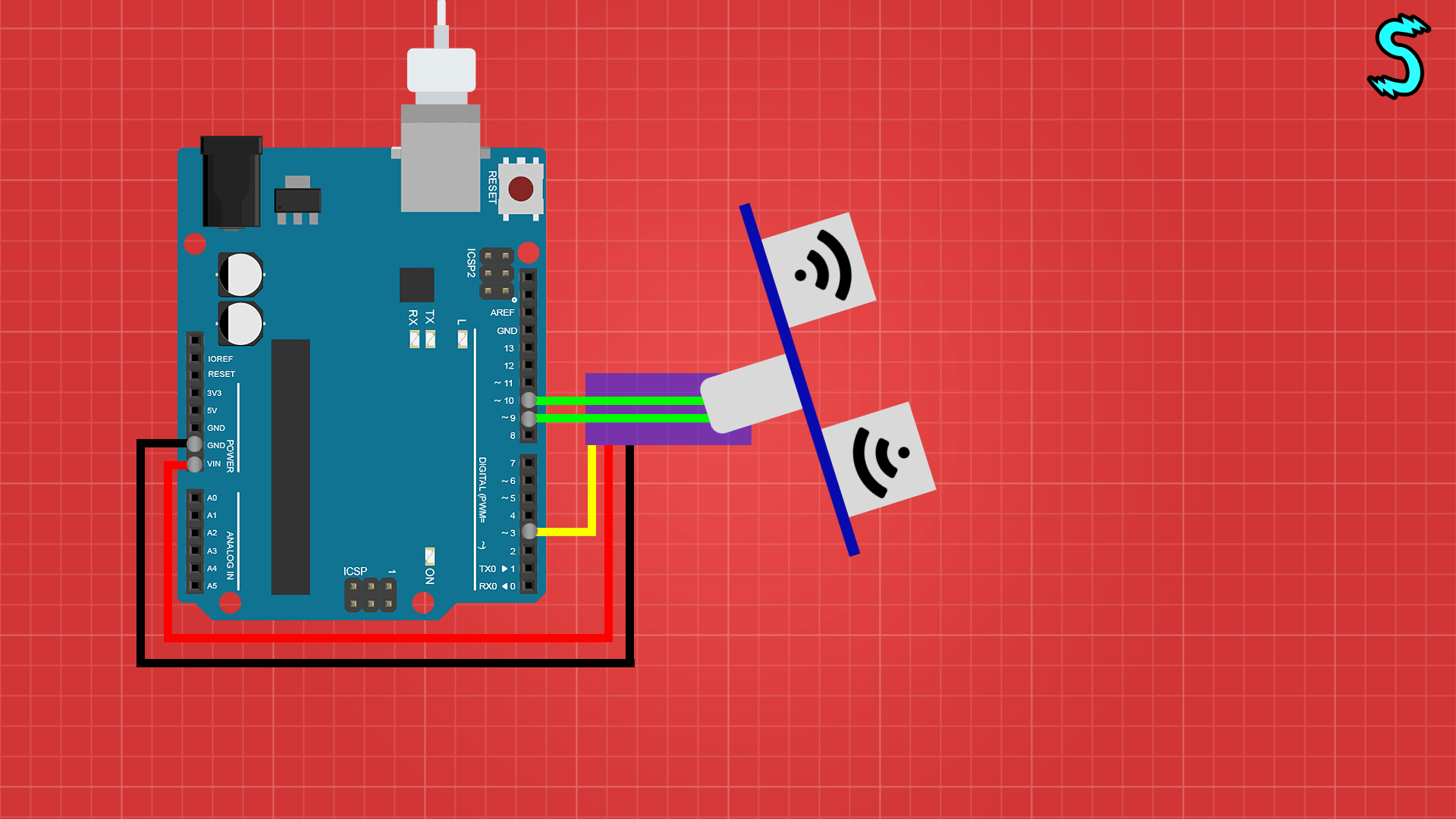
📌 Après avoir téléchargé le logiciel pour programmer l’Arduino 📑 https://sup.yt/arduinosoftware, il va falloir envoyer le code ci-dessous dans la carte:
[pastacode lang= »cpp » manual= »%2F%2F%20Includes%20the%20Servo%20library%0A%23include%20%3CServo.h%3E.%20%0A%2F%2F%20Defines%20Tirg%20and%20Echo%20pins%20of%20the%20Ultrasonic%20Sensor%0Aconst%20int%20trigPin%20%3D%209%3B%0Aconst%20int%20echoPin%20%3D%2010%3B%0A%2F%2F%20Variables%20for%20the%20duration%20and%20the%20distance%0Along%20duration%3B%0Aint%20distance%3B%0AServo%20myServo%3B%20%2F%2F%20Creates%20a%20servo%20object%20for%20controlling%20the%20servo%20motor%0Avoid%20setup()%20%7B%0A%20%20pinMode(trigPin%2C%20OUTPUT)%3B%20%2F%2F%20Sets%20the%20trigPin%20as%20an%20Output%0A%20%20pinMode(echoPin%2C%20INPUT)%3B%20%2F%2F%20Sets%20the%20echoPin%20as%20an%20Input%0A%20%20Serial.begin(9600)%3B%0A%20%20myServo.attach(3)%3B%20%2F%2F%20Defines%20on%20which%20pin%20is%20the%20servo%20motor%20attached%0A%7D%0Avoid%20loop()%20%7B%0A%20%20%2F%2F%20rotates%20the%20servo%20motor%20from%2015%20to%20165%20degrees%0A%20%20for(int%20i%3D15%3Bi%3C%3D165%3Bi%2B%2B)%7B%20%20%0A%20%20myServo.write(i)%3B%0A%20%20delay(30)%3B%0A%20%20distance%20%3D%20calculateDistance()%3B%2F%2F%20Calls%20a%20function%20for%20calculating%20the%20distance%20measured%20by%20the%20Ultrasonic%20sensor%20for%20each%20degree%0A%20%20%0A%20%20Serial.print(i)%3B%20%2F%2F%20Sends%20the%20current%20degree%20into%20the%20Serial%20Port%0A%20%20Serial.print(%22%2C%22)%3B%20%2F%2F%20Sends%20addition%20character%20right%20next%20to%20the%20previous%20value%20needed%20later%20in%20the%20Processing%20IDE%20for%20indexing%0A%20%20Serial.print(distance)%3B%20%2F%2F%20Sends%20the%20distance%20value%20into%20the%20Serial%20Port%0A%20%20Serial.print(%22.%22)%3B%20%2F%2F%20Sends%20addition%20character%20right%20next%20to%20the%20previous%20value%20needed%20later%20in%20the%20Processing%20IDE%20for%20indexing%0A%20%20%7D%0A%20%20%2F%2F%20Repeats%20the%20previous%20lines%20from%20165%20to%2015%20degrees%0A%20%20for(int%20i%3D165%3Bi%3E15%3Bi–)%7B%20%20%0A%20%20myServo.write(i)%3B%0A%20%20delay(30)%3B%0A%20%20distance%20%3D%20calculateDistance()%3B%0A%20%20Serial.print(i)%3B%0A%20%20Serial.print(%22%2C%22)%3B%0A%20%20Serial.print(distance)%3B%0A%20%20Serial.print(%22.%22)%3B%0A%20%20%7D%0A%7D%0A%2F%2F%20Function%20for%20calculating%20the%20distance%20measured%20by%20the%20Ultrasonic%20sensor%0Aint%20calculateDistance()%7B%20%0A%20%20%0A%20%20digitalWrite(trigPin%2C%20LOW)%3B%20%0A%20%20delayMicroseconds(2)%3B%0A%20%20%2F%2F%20Sets%20the%20trigPin%20on%20HIGH%20state%20for%2010%20micro%20seconds%0A%20%20digitalWrite(trigPin%2C%20HIGH)%3B%20%0A%20%20delayMicroseconds(10)%3B%0A%20%20digitalWrite(trigPin%2C%20LOW)%3B%0A%20%20duration%20%3D%20pulseIn(echoPin%2C%20HIGH)%3B%20%2F%2F%20Reads%20the%20echoPin%2C%20returns%20the%20sound%20wave%20travel%20time%20in%20microseconds%0A%20%20distance%3D%20duration*0.034%2F2%3B%0A%20%20return%20distance%3B%0A%7D » message= »📄 CODE ARDUINO » highlight= » » provider= »manual »/]
📌 Enfin il faut lancer l’interface graphique, après avoir téléchargé le logiciel Processing 📑 https://sup.yt/processing, il va falloir envoyer le code ci-dessous dans la carte:
[pastacode lang= »java » manual= »import%20processing.serial.*%3B%20%2F%2F%20imports%20library%20for%20serial%20communication%0Aimport%20java.awt.event.KeyEvent%3B%20%2F%2F%20imports%20library%20for%20reading%20the%20data%20from%20the%20serial%20port%0Aimport%20java.io.IOException%3B%0ASerial%20myPort%3B%20%2F%2F%20defines%20Object%20Serial%0A%2F%2F%20defubes%20variables%0AString%20angle%3D%22%22%3B%0AString%20distance%3D%22%22%3B%0AString%20data%3D%22%22%3B%0AString%20noObject%3B%0Afloat%20pixsDistance%3B%0Aint%20iAngle%2C%20iDistance%3B%0Aint%20index1%3D0%3B%0Aint%20index2%3D0%3B%0Avoid%20setup()%20%7B%0A%20%20%0A%20size%20(1920%2C%201080)%3B%20%2F%2F%20***CHANGE%20THIS%20TO%20YOUR%20SCREEN%20RESOLUTION***%0A%20smooth()%3B%0A%20myPort%20%3D%20new%20Serial(this%2C%22COM4%22%2C%209600)%3B%20%2F%2F%20starts%20the%20serial%20communication%0A%20myPort.bufferUntil(‘.’)%3B%20%2F%2F%20reads%20the%20data%20from%20the%20serial%20port%20up%20to%20the%20character%20′.’.%20So%20actually%20it%20reads%20this%3A%20angle%2Cdistance.%0A%7D%0Avoid%20draw()%20%7B%0A%20%20%0A%20%20fill(98%2C245%2C31)%3B%0A%20%20%2F%2F%20simulating%20motion%20blur%20and%20slow%20fade%20of%20the%20moving%20line%0A%20%20noStroke()%3B%0A%20%20fill(0%2C4)%3B%20%0A%20%20rect(0%2C%200%2C%20width%2C%20height-height*0.065)%3B%20%0A%20%20%0A%20%20fill(98%2C245%2C31)%3B%20%2F%2F%20green%20color%0A%20%20%2F%2F%20calls%20the%20functions%20for%20drawing%20the%20radar%0A%20%20drawRadar()%3B%20%0A%20%20drawLine()%3B%0A%20%20drawObject()%3B%0A%20%20drawText()%3B%0A%7D%0Avoid%20serialEvent%20(Serial%20myPort)%20%7B%20%2F%2F%20starts%20reading%20data%20from%20the%20Serial%20Port%0A%20%20%2F%2F%20reads%20the%20data%20from%20the%20Serial%20Port%20up%20to%20the%20character%20′.’%20and%20puts%20it%20into%20the%20String%20variable%20%22data%22.%0A%20%20data%20%3D%20myPort.readStringUntil(‘.’)%3B%0A%20%20data%20%3D%20data.substring(0%2Cdata.length()-1)%3B%0A%20%20%0A%20%20index1%20%3D%20data.indexOf(%22%2C%22)%3B%20%2F%2F%20find%20the%20character%20’%2C’%20and%20puts%20it%20into%20the%20variable%20%22index1%22%0A%20%20angle%3D%20data.substring(0%2C%20index1)%3B%20%2F%2F%20read%20the%20data%20from%20position%20%220%22%20to%20position%20of%20the%20variable%20index1%20or%20thats%20the%20value%20of%20the%20angle%20the%20Arduino%20Board%20sent%20into%20the%20Serial%20Port%0A%20%20distance%3D%20data.substring(index1%2B1%2C%20data.length())%3B%20%2F%2F%20read%20the%20data%20from%20position%20%22index1%22%20to%20the%20end%20of%20the%20data%20pr%20thats%20the%20value%20of%20the%20distance%0A%20%20%0A%20%20%2F%2F%20converts%20the%20String%20variables%20into%20Integer%0A%20%20iAngle%20%3D%20int(angle)%3B%0A%20%20iDistance%20%3D%20int(distance)%3B%0A%7D%0Avoid%20drawRadar()%20%7B%0A%20%20pushMatrix()%3B%0A%20%20translate(width%2F2%2Cheight-height*0.074)%3B%20%2F%2F%20moves%20the%20starting%20coordinats%20to%20new%20location%0A%20%20noFill()%3B%0A%20%20strokeWeight(2)%3B%0A%20%20stroke(98%2C245%2C31)%3B%0A%20%20%2F%2F%20draws%20the%20arc%20lines%0A%20%20arc(0%2C0%2C(width-width*0.0625)%2C(width-width*0.0625)%2CPI%2CTWO_PI)%3B%0A%20%20arc(0%2C0%2C(width-width*0.27)%2C(width-width*0.27)%2CPI%2CTWO_PI)%3B%0A%20%20arc(0%2C0%2C(width-width*0.479)%2C(width-width*0.479)%2CPI%2CTWO_PI)%3B%0A%20%20arc(0%2C0%2C(width-width*0.687)%2C(width-width*0.687)%2CPI%2CTWO_PI)%3B%0A%20%20%2F%2F%20draws%20the%20angle%20lines%0A%20%20line(-width%2F2%2C0%2Cwidth%2F2%2C0)%3B%0A%20%20line(0%2C0%2C(-width%2F2)*cos(radians(30))%2C(-width%2F2)*sin(radians(30)))%3B%0A%20%20line(0%2C0%2C(-width%2F2)*cos(radians(60))%2C(-width%2F2)*sin(radians(60)))%3B%0A%20%20line(0%2C0%2C(-width%2F2)*cos(radians(90))%2C(-width%2F2)*sin(radians(90)))%3B%0A%20%20line(0%2C0%2C(-width%2F2)*cos(radians(120))%2C(-width%2F2)*sin(radians(120)))%3B%0A%20%20line(0%2C0%2C(-width%2F2)*cos(radians(150))%2C(-width%2F2)*sin(radians(150)))%3B%0A%20%20line((-width%2F2)*cos(radians(30))%2C0%2Cwidth%2F2%2C0)%3B%0A%20%20popMatrix()%3B%0A%7D%0Avoid%20drawObject()%20%7B%0A%20%20pushMatrix()%3B%0A%20%20translate(width%2F2%2Cheight-height*0.074)%3B%20%2F%2F%20moves%20the%20starting%20coordinats%20to%20new%20location%0A%20%20strokeWeight(9)%3B%0A%20%20stroke(255%2C10%2C10)%3B%20%2F%2F%20red%20color%0A%20%20pixsDistance%20%3D%20iDistance*((height-height*0.1666)*0.025)%3B%20%2F%2F%20covers%20the%20distance%20from%20the%20sensor%20from%20cm%20to%20pixels%0A%20%20%2F%2F%20limiting%20the%20range%20to%2040%20cms%0A%20%20if(iDistance%3C40)%7B%0A%20%20%20%20%2F%2F%20draws%20the%20object%20according%20to%20the%20angle%20and%20the%20distance%0A%20%20line(pixsDistance*cos(radians(iAngle))%2C-pixsDistance*sin(radians(iAngle))%2C(width-width*0.505)*cos(radians(iAngle))%2C-(width-width*0.505)*sin(radians(iAngle)))%3B%0A%20%20%7D%0A%20%20popMatrix()%3B%0A%7D%0Avoid%20drawLine()%20%7B%0A%20%20pushMatrix()%3B%0A%20%20strokeWeight(9)%3B%0A%20%20stroke(30%2C250%2C60)%3B%0A%20%20translate(width%2F2%2Cheight-height*0.074)%3B%20%2F%2F%20moves%20the%20starting%20coordinats%20to%20new%20location%0A%20%20line(0%2C0%2C(height-height*0.12)*cos(radians(iAngle))%2C-(height-height*0.12)*sin(radians(iAngle)))%3B%20%2F%2F%20draws%20the%20line%20according%20to%20the%20angle%0A%20%20popMatrix()%3B%0A%7D%0Avoid%20drawText()%20%7B%20%2F%2F%20draws%20the%20texts%20on%20the%20screen%0A%20%20%0A%20%20pushMatrix()%3B%0A%20%20if(iDistance%3E40)%20%7B%0A%20%20noObject%20%3D%20%22Out%20of%20Range%22%3B%0A%20%20%7D%0A%20%20else%20%7B%0A%20%20noObject%20%3D%20%22In%20Range%22%3B%0A%20%20%7D%0A%20%20fill(0%2C0%2C0)%3B%0A%20%20noStroke()%3B%0A%20%20rect(0%2C%20height-height*0.0648%2C%20width%2C%20height)%3B%0A%20%20fill(98%2C245%2C31)%3B%0A%20%20textSize(25)%3B%0A%20%20%0A%20%20text(%2210cm%22%2Cwidth-width*0.3854%2Cheight-height*0.0833)%3B%0A%20%20text(%2220cm%22%2Cwidth-width*0.281%2Cheight-height*0.0833)%3B%0A%20%20text(%2230cm%22%2Cwidth-width*0.177%2Cheight-height*0.0833)%3B%0A%20%20text(%2240cm%22%2Cwidth-width*0.0729%2Cheight-height*0.0833)%3B%0A%20%20textSize(40)%3B%0A%20%20text(%22Object%3A%20%22%20%2B%20noObject%2C%20width-width*0.875%2C%20height-height*0.0277)%3B%0A%20%20text(%22Angle%3A%20%22%20%2B%20iAngle%20%2B%22%20%C2%B0%22%2C%20width-width*0.48%2C%20height-height*0.0277)%3B%0A%20%20text(%22Distance%3A%20%22%2C%20width-width*0.26%2C%20height-height*0.0277)%3B%0A%20%20if(iDistance%3C40)%20%7B%0A%20%20text(%22%20%20%20%20%20%20%20%20%22%20%2B%20iDistance%20%2B%22%20cm%22%2C%20width-width*0.225%2C%20height-height*0.0277)%3B%0A%20%20%7D%0A%20%20textSize(25)%3B%0A%20%20fill(98%2C245%2C60)%3B%0A%20%20translate((width-width*0.4994)%2Bwidth%2F2*cos(radians(30))%2C(height-height*0.0907)-width%2F2*sin(radians(30)))%3B%0A%20%20rotate(-radians(-60))%3B%0A%20%20text(%2230%C2%B0%22%2C0%2C0)%3B%0A%20%20resetMatrix()%3B%0A%20%20translate((width-width*0.503)%2Bwidth%2F2*cos(radians(60))%2C(height-height*0.0888)-width%2F2*sin(radians(60)))%3B%0A%20%20rotate(-radians(-30))%3B%0A%20%20text(%2260%C2%B0%22%2C0%2C0)%3B%0A%20%20resetMatrix()%3B%0A%20%20translate((width-width*0.507)%2Bwidth%2F2*cos(radians(90))%2C(height-height*0.0833)-width%2F2*sin(radians(90)))%3B%0A%20%20rotate(radians(0))%3B%0A%20%20text(%2290%C2%B0%22%2C0%2C0)%3B%0A%20%20resetMatrix()%3B%0A%20%20translate(width-width*0.513%2Bwidth%2F2*cos(radians(120))%2C(height-height*0.07129)-width%2F2*sin(radians(120)))%3B%0A%20%20rotate(radians(-30))%3B%0A%20%20text(%22120%C2%B0%22%2C0%2C0)%3B%0A%20%20resetMatrix()%3B%0A%20%20translate((width-width*0.5104)%2Bwidth%2F2*cos(radians(150))%2C(height-height*0.0574)-width%2F2*sin(radians(150)))%3B%0A%20%20rotate(radians(-60))%3B%0A%20%20text(%22150%C2%B0%22%2C0%2C0)%3B%0A%20%20popMatrix()%3B%20%0A%7D » message= »📄 CODE PROCESSING » highlight= » » provider= »manual »/]
merci
Avec plaisir !
Bonjour, merci beaucoup pour cette vidéo, serait il possible d’avoir les deux codes en fichier a télécharger, car je n’arrive pas a les copier, pour réaliser votre montage, merci
Bonjour, j’ai bien installé les 2 logiciels, Arduino marche très bien mais l’autre logiciel ne trouve pas « COM6 ». (bug au niveau de la 16 ligne)
Je n’arrive pas a résoudre ce problème. Je vous prie de m’aider.
Alexandre
AH NON !! J’ai juste fais un petite erreur, j’ai réussi a le résoudre !
Bonne journée
comment tu résoudre ce problème Jai la même prob!
Bjr, j’ai un problème niveau processing. Dans le code processing lis les donnes du com4. Quand je change com 4 par com 6 (mon arduino ne marche que sur com6) j’obtiens » error opening serial port COM6″ une solution? Je suis sous windows 7.
Bonjour je débute dans ce domaine et j’ai un problème avec d’une part le servo moteur, il est très lent alors que j’ai recopié votre code, comment peut il aller aussi vite que sur la video? et d’autre part dans le deuxième code que représente le COM4 et y a t il des lignes de code à compléter?
merci
bonjour
j’utilise votre programme et dans processing, le port com4 n’est pas reconnu. Avez-vous une solution pour que mon système voit bien les infos arrivant sur mon port ?
Amitiés
Boujour,
Je souhaite reproduire le projet pour en faire une expérimentation sur l’eau
Je souhaite savoir si il ne faut que les logiciels demandés pour afficher l’interface graphique où faut-il considerer d’autre logiciels car à chaque fois que je copie les partie du code processing progressivement. Un plantage apparaît alors que le code arduino de ma carte est televersé
Pouvez vous m’aider
Appolo
Bonjour et merci pour votre tuto.
j’ai un souci avec processing, du coté de l’arduino pas de souci et j’ai réussi a envoyer le code dans processing.
Le dessin du radar s’affiche bien mais il n’y a aucune interaction lorsque l’arduino est brancher en usb sur le pc.
Pourriez vous me dire d’où pourrait venir le problème ?
Merci
bonjour serait-il possible d’avoir une explication pour chacun des deux codes nécessaires à l’expérience ?
j’ai du mal à comprendre toutes les manipulations effecutées…
merci d’avance !
Bonjour, j’ai mis votre programme dans processing sur mac et j’obtiens une erreur sur cette phrase:
myPort = new Serial(this, »COM4″, 9600); // starts the serial communication
voici le message d’erreur:
RuntimeException: Error opening serial port COM4: Port not found
RuntimeException: Error opening serial port COM4: Port not found
RuntimeException: Error opening serial port COM4: Port not found
comment puis je faire pour résoudre ce problème 🙂 svp?
Bonjour
Je ne comprend pas ou il faut mettre le deuxieme programme quand je le mets sous le premier il met : variable or field ‘serialEvent’ declared void.
Merci pour votre aide. Je suis retraité et j’essai d’apprendre cette nouvelle technologie
Super ! très utile.
merci
bonjour jai un probleme dans processing de port il me dit que le port n’existe pas
merci monseingeur
salut.
cela fonctionne très bien.
mais le pleine écran ne fonctionne pas ou il est coupé.
savez vous pourquoi?
Salut quand je lance le programme avec le processing pour voir le capteur sa me mets un écran gris pourrai tu m’aider stp ?
bonjour beaucoup de courage pour la suite.
problème avec processing
AIdez moi svp, comment changer le port com4 en port com5 sur le logicielsvp
ah non c bon
J’ai un problème de téléversement
merci bcp
Super ça marche très bien.
Attention quand même aux oublis ou erreurs dans le schéma de câblage:
*le servo est sur 5V et pas sur Vin.
*le 5V et GND du capteur ont été oubliés
Bravo et merci pour le code (ne pas oublier d’adapter le n° de COM pour son cas particulier dans le code processing).
De quel logiciel parlez vous au juste
Bonjour,
Pour tous ceux qui ont le problème avec le COM 4, il faut le changer en COM 3, car dans le montage de la vidéo, on relie le fil jaune au port 3 (il faut que le numéro de COM dans le programme du radar, à la ligne 18, soit le même que le numéro sur la carte auquel on a connecté le fil jaune).
Le code initial : myPort = new Serial(this, »COM4″, 9600); // starts the serial communication
Le code modifié à la ligne 18 : myPort = new Serial(this, »COM3″, 9600); // starts the serial communication